> For the complete documentation index, see [llms.txt](https://docs.konnekt.io/llms.txt). Markdown versions of documentation pages are available by appending `.md` to page URLs; this page is available as [Markdown](https://docs.konnekt.io/fr/troubleshooting/add-konnekt-paths-as-trusted-sites.md).
# Ajouter les chemins KONNEKT comme sites de confiance
## Situation
Les utilisateurs ne peuvent pas ouvrir des fichiers, par exemple des fichiers macro Excel, en double-cliquant dessus dans KONNEKT.
## Problème
Toutes les URL SharePoint et le chemin UNC correspondant utilisés dans KONNEKT doivent être définis comme sites de confiance
## Solution
Celles-ci peuvent être définies dans :
* Options Internet dans Edge ou Internet Explorer (pour les utilisateurs de Windows 10)
* Centre de gestion de la confidentialité dans une application Office de votre choix
* Ou via une stratégie Intune
### Intune
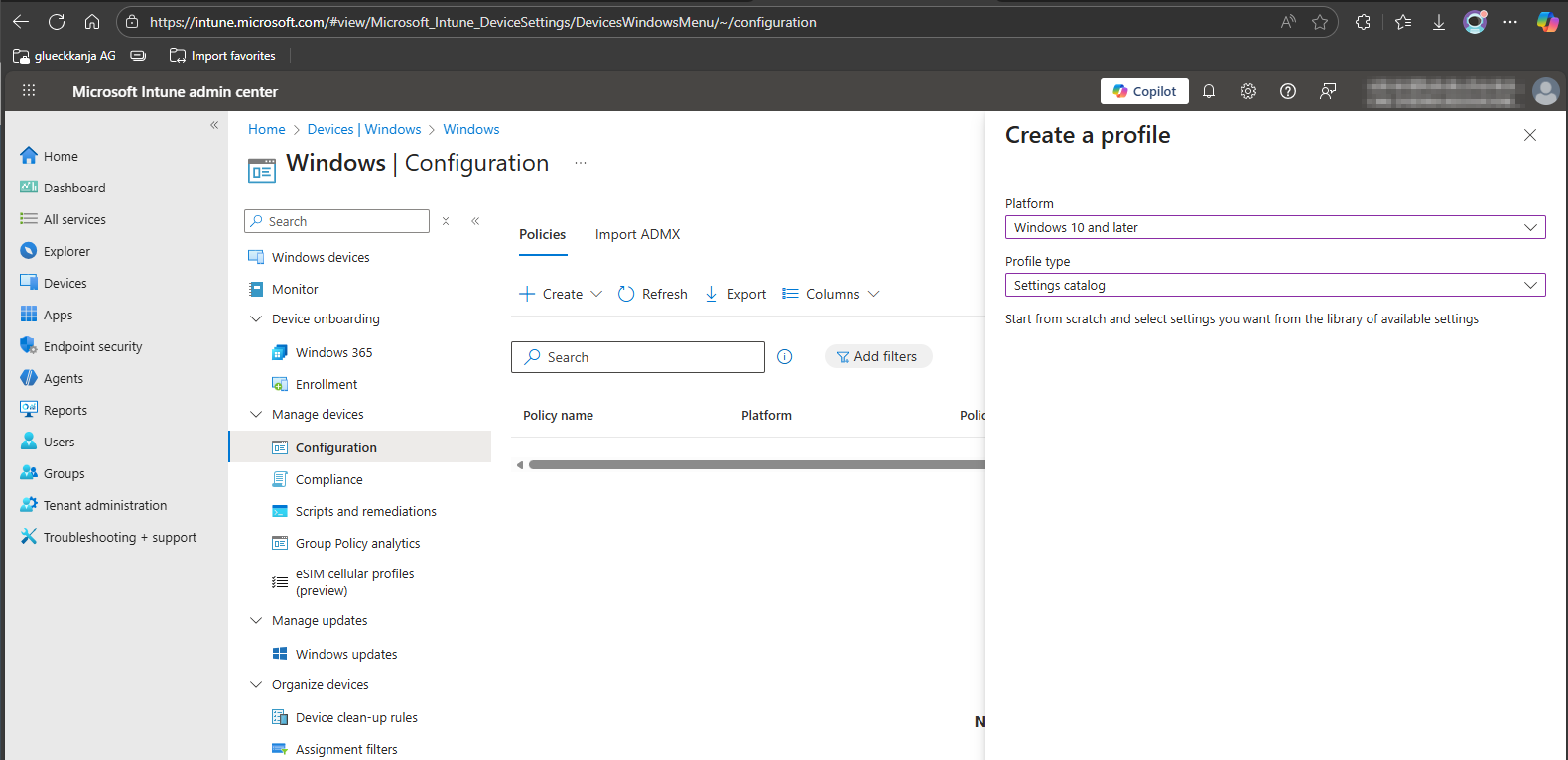
* Créer un nouveau profil pour "Windows 10 et versions ultérieures"
* Type de profil "Catalogue des paramètres"
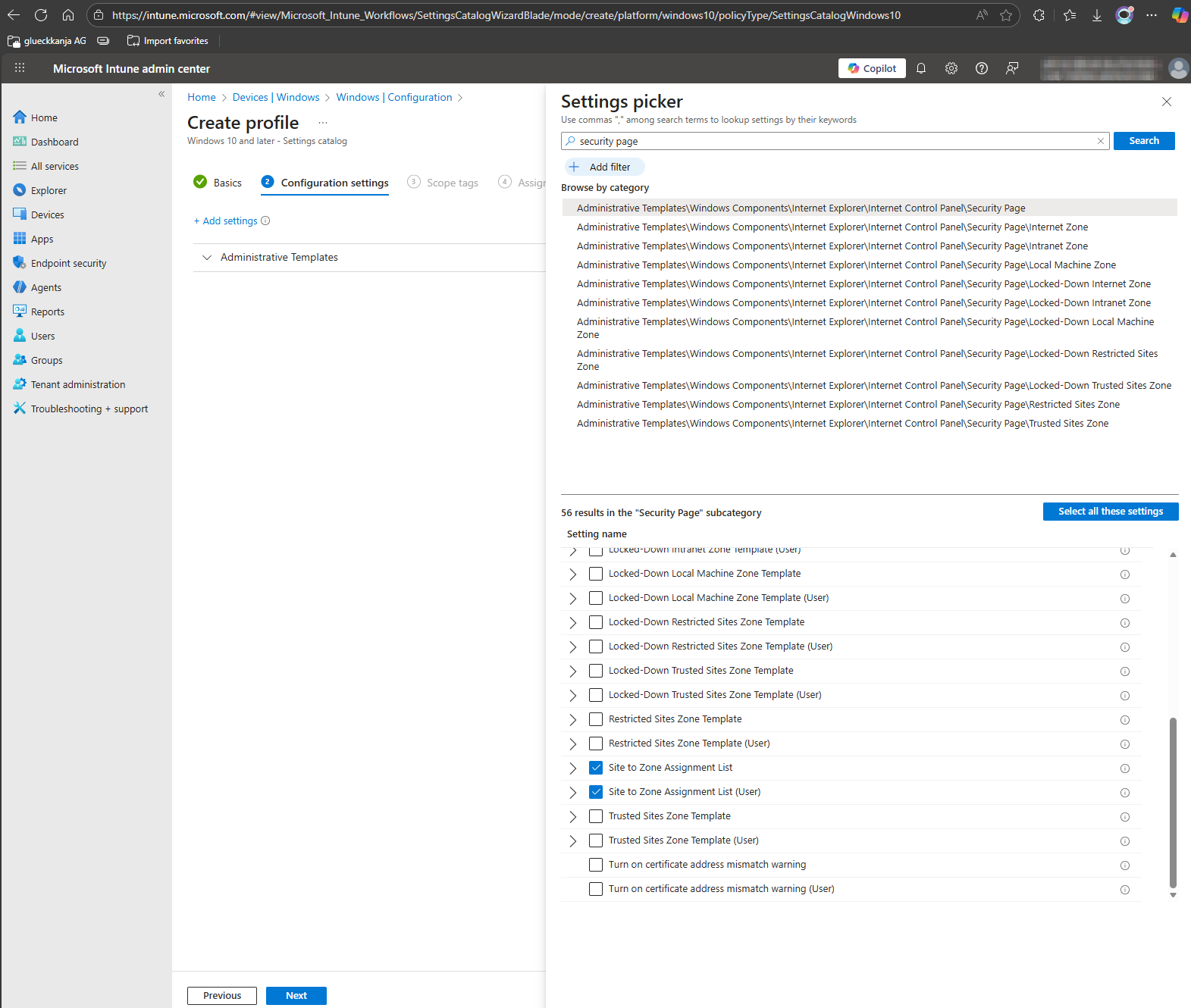
* Rechercher "security pages"
* Sélectionnez la catégorie suivante \\\\
```
Composants Windows > Internet Explorer > Panneau de configuration Internet > Page de sécurité
```
* Utilisez l’un ou l’autre
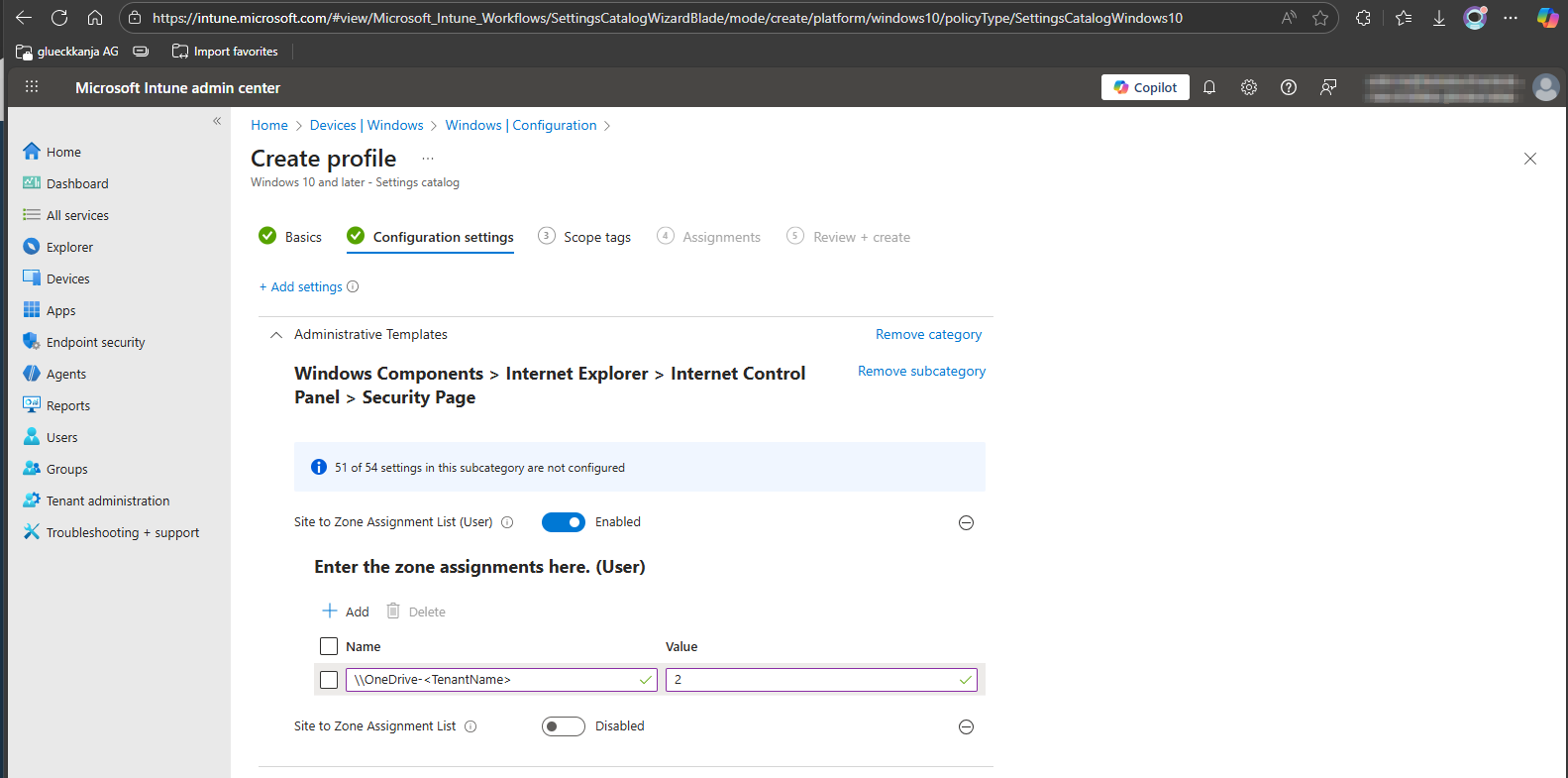
* Liste d’affectation des sites aux zones
* Liste d’affectation des sites aux zones (utilisateur)
* Définissez les trois chemins - UNC et URL
```
".sharepoint.com" = "2",
"-my.sharepoint.com" = "2",
"\\OneDrive-" = "2"
```
{% hint style="info" %}
TenantName est défini par le nom initial ou le nom de Tenant par défaut défini dans[ le Centre d’administration Microsoft](https://admin.cloud.microsoft/?#/Domains). Cela dépend si "[EnhancedAuthentication](/fr/configuration/system-settings/enhanced-authentication.md)" est activé.
{% endhint %}
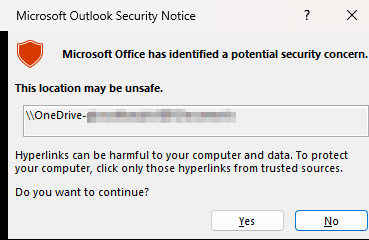
La configuration de cela n’empêchera pas Outlook d’afficher un avertissement de sécurité.
Pour savoir comment désactiver cette boîte de dialogue, consultez l’article [*Activer ou désactiver les messages d’avertissement de lien hypertexte dans les programmes Office*](https://learn.microsoft.com/en-us/troubleshoot/microsoft-365-apps/office-suite-issues/enable-disable-hyperlink-warning#how-to-globally-enable-or-disable-hyperlink-warnings).
HKEY\_CURRENT\_USER\\\software\\\policies\\\microsoft\\\office\\\16.0\\\common\\\security\
DWORD : DisableHyperlinkWarning\
Valeur : 1
{% hint style="warning" %}
Cette solution de contournement rend un ordinateur ou un réseau plus vulnérable aux attaques de la part d’utilisateurs malveillants ou de logiciels malveillants tels que des virus.
{% endhint %}
---
# Agent Instructions
This documentation is published with GitBook. GitBook is the documentation platform designed so that both humans and AI agents can read, navigate, and reason over technical content effectively. Learn more at gitbook.com.
## Querying This Documentation
If you need additional information that is not directly available in this page, you can query the documentation by asking a question.
Perform an HTTP GET request on the following URL with the `ask` and `goal` query parameters:
```
GET https://docs.konnekt.io/fr/troubleshooting/add-konnekt-paths-as-trusted-sites.md?ask=&goal=
```
`ask` is the immediate question: it should be specific, self-contained, and written in natural language.
`goal` is what the user is ultimately trying to achieve, the reason they need the answer. Sharing it helps GitBook give you a better, more relevant answer. A goal is most helpful when it describes the outcome the user wants rather than restating the question. For example, with `ask=how do I create an API token`, a goal like `automate deployments from our CI pipeline` lets GitBook tailor the answer to that use case.
The response will contain a direct answer to the question and relevant excerpts and sources from the documentation.
Use this mechanism when the answer is not explicitly present in the current page, you need clarification or additional context, or you want to retrieve related documentation sections.